Ubuntu 14.04 – How to install xrdp (Xfce4) in Ubuntu 14.04
we will describe the steps needed in order to install xrdp and the xfce
alternate desktop that will be used while remoting into your Ubuntu
14.04 machine.
Install XRDP Package from Ubuntu Repository
1. First, Login in to your Desktop Machine with user you want to configure the xRDP
2. After Login, Using the Dash Button, in search Box, Type Terminal
Click on the terminal icon and the Terminal console will open
In the Terminal, type the following command
sudo apt-get install xrdp
You will be prompted for your password. Enter the Current logged in user password.
It will show you the Packages information and Size. Enter Y to Download and Install.
Done.
In the Terminal console; type the following command
sudo apt-get update
sudo apt-get install xfce4
You might be prompted for a password, Enter the Current logged in user password.
It will show you the Packages information and Size. Enter Y to Download and Install.
Restart the xrdp service by issuing the following command.
sudo service xrdp restart
It will show you the Packages information and Size. Enter Y to Download and Install.
Done.
Installing an alternate desktop environment (XFCE4).
In the Terminal console; type the following command
sudo apt-get update
sudo apt-get install xfce4
You might be prompted for a password, Enter the Current logged in user password.
It will show you the Packages information and Size. Enter Y to Download and Install.
Done.
Configuration for Xrdp
you have to configure your Ubuntu machine in order for xrdp to know that the xfce desktop
will be used instead of the Current Desktop Environment. To configure this, Login with the user you want to configure Remote Desktop. from the terminal console, you
will issue the following command
echo xfce4-session >~/.xsession
Restart the xrdp service by issuing the following command.
sudo service xrdp restart
Test Your Configuration
To know the IP of the machine type in terminal
hostname -I
Now go to your windows machine, start remote Desktop client and enter the ip address/name of your ubuntu machine.
You should see then the login screen of xrdp presented to you. Note
that, at this screen (and because we have not configured keyboard layout
yet), the keyboard layout is set to English by default.
Enter username and password for which you configured the xrdp and Press OK
If everything is configured correctly,you should see your xfce desktop
loading and you should be able to perform you work through this desktop
environment.


 )
)
Till next Time
See ya
To set Keyboard layout at the xrdp Login screen, perform the following steps
As explained above, with no special configuration, the xrdp login screen keyboard layout is set to english by default. if you need to change it to another keyboard layout, you should proceed with the following actionsThis is the command you should issue in order to change the keyboard layout to be used during xrdp sessions…
Step 1 : You go to the /etc/xrdp directory
Step 2 : you issue the command setxkbmap -layout <%your layout%> to define which keyboard map/layout to use
Step 3 : create a copy of the km-0409.ini file into the same directory. It seems that this is the default file used by xrdp to define the keyboard layout. You will need to use sudo in order to be able to write into the directory
Step 4 : Check that you have a backup of your file by typing the dir or ls command
Step 5 : update the file by issuing the following command sudo xrdp-genkeymap km-0409.ini
Reconnect to the same session throug xrdp
You have mutliple ways to reconnect to
the same session through xrdp. we have explained two of them. One method
is based on performing a custom installation and use the X11VNC
software. This is one is working well but requires a little bit more
effort. (http://c-nergy.be/blog/?p=4168)
The other one is to use the xrdp package
from ubuntu repository and tweak some configuration files whil
connected to the session. This solution is really a workaround and it’s
not our favourite one. (see http://c-nergy.be/blog/?p=4471)
Here, we will use a third method
that can be used if you use the xrdp pakcage from the ubuntu
repository. This method is much better than the one provided by us some
time ago. In this method, we will tweak the xrdp login screen. We will
add a field in the login box where the user can specify the port to be
used when remoting to the ubuntu machine.
You will first need to edit xrdp.ini file located under the /etc/xrdp. To edit the file, issue the following command
sudo gedit /etc/xrdp/xrdp.ini
You might be prompted for a password. if this is the case, provide the password and Press enter
When the file is open, locate the section [xrdp1] and replace the following line
When the file is open, locate the section [xrdp1] and replace the following line
port=-1
with the line
port=ask-1
Save the file. The file should look like this

Click on Picture for Better Resolution
When done, restart the xrdp service by issuing the following command
sudo service xrdp restart.
You are done.
When trying to access your Ubuntu
machine through via the remote desktop client, you will see that the
xrdp login screen has indeed an additional field called port.
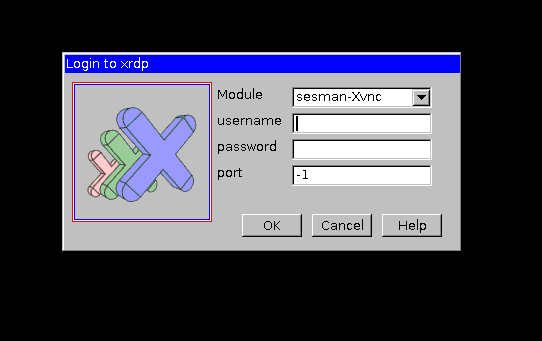
Click on Picture for Better Resolution
If this is your first connection, leave the default value in the port field (i.e. -1), you will be then connecting through xrdp to your ubuntu machine using a specified port that can be seen on the login process dialog box.
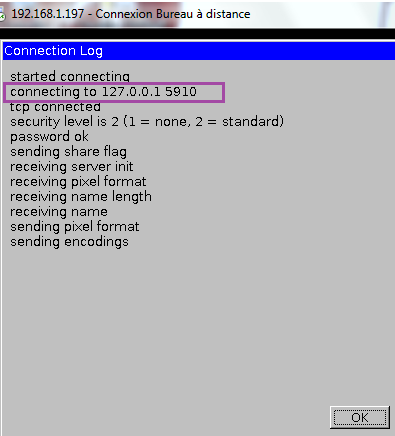
Click on Picture for Better Resolution
Take a note of this port.
When you need to reconnect, you will
have to specify the same port as your first connection and you should
see the same screen as you left it.
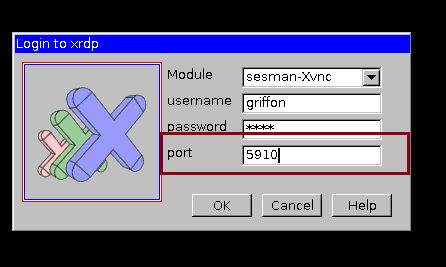
Click on Picture for Better Resolution
Note : This tip has been provided to us by one of our reader (Thank you Wei )
This is it for this post. Using only the
ubuntu xrdp package, we have been able to install and configure a
remote access solution. By tweaking the xrdp.ini file, we even have been
able to provide a simple and easy to use solution in order to reconnect
to an existing session.
However, we still have a problem with
xrdp used in conjunction with Ubuntu. In order to remote into your
ubuntu machine, you have no other choice than using an alternate desktop
environment (in our case its xfce). I find it quite irritating that we
cannot have the xrdp package working with Unity or Gnome desktop
environment.
We have installed fedora distribution
and installed the xrdp package. And guess what ! I can connect through
xrdp to fedora and have the gnome desktop environment working. Moreover,
I can disconnect and when reconnecting I will be reconnecting to the
existing session I just left. And all of this with no tweak in
configuration files.
I would love to see the same
functionality in Ubuntu. As one of our readers mentionned, it might be
time for Ubuntu users to fill in a bug report about xrdp and try to have
it fixed. If more and more users complains, maybe Ubuntu team will take
the request into account.
Till next Time
See ya


No comments:
Post a Comment